|
|
Audio-Video recording
Using this function you can capture video/audio
during the performance.
|
Technical Notes
|
Only Audio recording
You can use the characteristics
Hardware of your sound-card to record in PCM-WAV format. And later you will
convert in MP3 or whichever other format using "Converi" function of Windows
"Sound recorder" or whichever other program of conversion. You can also
record a "Standard" Audio CD using a program released together to your CD
master (ie. Roxio, Nero, etc).
|
Video/Audio recording
You can record the video using the same WebCam that
already used for chat and audio using your sound-card. Captured video is
recorded in AVI format using compression Video-Audio codecs, therefore is
editabile and convertibile using whichever video editor (ie.
®Microsoft Movie Maker)
|
-
Audio-Video recording is available in
ADVanced and PROfessional versions while it is demo (time limited to 15
sec.) in the Junior version.
-
KarAll is a "CPU intensive" application. Means that several
functionalities need of much CPU-Time to works. New recording functions
also need very much CPU-Time. We executed some tests for only Audio
recording using ®Pentium-III and it's ok. But for Video recording
functionalities must use a ®Pentium-IV PC, at least of 2,5Ghz if use "Live-View"
function. We advise you to activate the "Task manager" during the tests;
if CPU-Time-used is constantly over 75% the functions could have problems
and loss part of the captured Audio-Video data or slowing or
stop 'application. Moreover, if the captured video seems type "Slow-Motion"
don't depend from program oy from operating system, normally it depends on
the WebCam that does not have the characteristics to captuire a sufficient
number of photograms for second (norm. 15 fps); you can check for this
problem from capture statistics if a high percentage of photograms
discarded.
-
Recording functionalities depends completely from some
Windows modules, drivers of the Sound-card/Webcam and Audio-Video "Codecs"
installed on your PC. In some cases could be errors for
incompatibility between they or for not Windows certification. We have
noticed that several codecs (MP3, DivX, XVid, etc.) are usually more
stabler in Windows XP/NT/2000 rather than Windows 95/98/Me. In some case
you can try to solve problems installing newest version or changing
combination of Audio/Video Codecs.
-
We advise you to use
a little time bit first time you use this functionalities to "Tuning"
system
Don't worry, it's not very difficult !
|
| |
|
Functions
|
Options
|
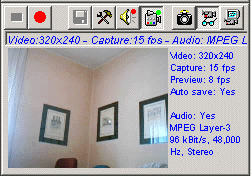
- Stop
Stop recording
- Record
Start recording
-
Save
Save captured Audio/Video
-
Options
Option control panel
- Audio activate
Actives Audio
recording modality
- Video activate
Actives Video
recording modality
- Photo click
Click a photo, save and transfer on karaoke windowbackground
- Video Preview
To view captured
video scene in a smalle window to regulate capture parameters
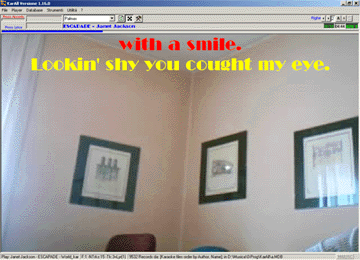
- LiveView
To view video scene on background in Karaoke window. Can view also on
alternate video (Tele) with a spectacular effect!
Warnig! This function require very much CPU-Time (See
Notes)
|
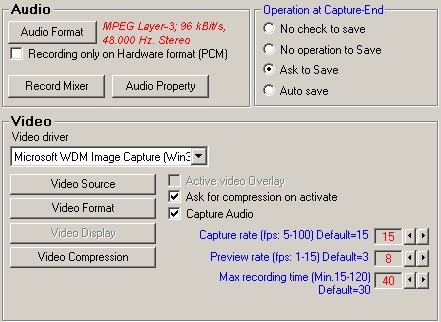
Audio
- Audio Format
To choose audio format and
quality characteristic
- Recording only on Hardware format
To limit audio format only on
hardware supported format
- Record Mixer
To choose audio source and
recording level
- Audio property
To choose sound-card source and
characteristics
Video
- Video driver
To choose video driver source
- (1)Video
source
To choose video/Foto camera
source
- (1)Video
Format
To choose video format (RGB, etc) and video
dimension
- (1)Video
Display
To choose display modality
- (1)Video
Compression
To choose video codec for compression
- (1)Active
video overlay
To activate Overlay software from video driver
(1)
This function completely depends from specific video driver software, some
could be not available.
- Ask for compression on activate
To choose video codec for compression on
video capture activate.
Use it if driver software don't "remember" last used codec.
- Capture Audio
To activate Audio recording on video capture.
- Capture rate
Number of photogram to capture every second (Frame Per
Second)
Default value 15 -It strongly depends from Photo/video camera
characteristics
- Preview rate
Number of photogram to capture every second (Frame Per
Second) durind video preview.
Warnig! This parameter is used also for the function "LiveView" and it
influences a lot CPU-Time used (See
Notes)
- Max video recording time
Max tim for video recording.
Checks
- Operation at capture end
Control to execute for the captured audio-video.
Warning! If you choose "No check to save" the program can begins a new one
capture session without to verify the previous one.
|
|
.gif)



















 info@karmidi.com